
Your Link List is a website that can be used as your 'home page' or
as a reference website for internet searching and web browsing. First, there are multiple 'Categories' or 'Headings'
with website links listed under each 'Category' or 'Heading'. Initially, there is a default webpage with default
headings and several website links pre-loaded, but the site will also allow the user to login, generate their own home
page, modify the initial headings and modify the link content by dragging and dropping the web link
(if using Chrome or Safari) or by clicking "Add New" and adding their favorite web sites to match
what they wish to access on the web.

|
|
|
|
|
When you go to the website you will see the main screen you where you can select a category or click on a link. Most everything is available here. All the categories are on the main page with the top few links in each category available for the user to click. You can also log in or sign up from links on this page. The left side also has a list of the same categories as the center section, with a list of all the category link data on the right side of the page.
|
HomeClick on the Home button to bring up this page with all the Categories listed.
Category ListClick on any Category in this list to bring up a list of links on the right side.
Category TitlesClick on any Category Title on the main page to open the specific subpage (to see all the links under the subpage).
Category LinksClick on any Category Link on the main page to open the specific page (each page is opened in a new tab). |
|
Log InClick on the Log In button to bring up the 'Log In' page (to log in to the web site).
Sign UpClick on the Sign Up button to bring up the 'Sign Up' page (to sign up to the web site).
Link ListClick on one of these Links to open the page (each page is opened in a new tab). |
You can look at the 'default' data without logging in but if you want to add more web links or modify the site, you must log in. To log in you must first have an account. To get an account you must sign up. Note: you must use a valid e-mail to activate your account as the e-mail is used if you forget your password and need to reset it.
|
 |
Once you have signed up, you can log in to the site.
|
 |
When you go to the website, and are logged in, this is the main screen you will see. Most everything is available here. All the categories are on the main page with the top few selections in each category available for the user to click on. You can also log out and modify your profile from links on this page. The left side also has a list of the same categories as the center section, with a list of all the category listings on the right side of the page. To modify the web site to match your personal preference, click the 'Config' link to add or delete categories or links.
|
ConfigureClick on the Config button to bring up the Configuration page.
HomeClick on the Home button to bring up this page with all the Categories listed.
Category ListClick on any Category in this list to bring up a list of links on the right side. |
 |
Log OutClick on the Log Out button to 'Log Out' of the user account.
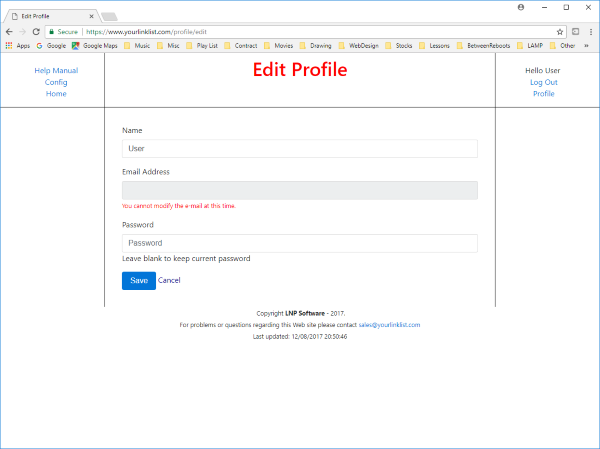
ProfileClick on the Profile button to modify the user's profile data (change thier user's name, e-mail, and/or password). |
If you are logged in you can view your Profile page. If you would like to change any of that data click the 'Change Password or Edit Profile' link.
|
 |
You can edit your Profile page. If you click the 'Change Password or Edit Profile' link.
|
 |
To log out of your account:
|
 |
If you want to add or delete elements on this website you need to go to the 'Config' page to access all the 'edit' functions:
|
Edit CategoryClick on the Edit Category button to bring up the page that will allow for editing the Category Titles. |
 |
Edit LinksClick on the Edit Links button to bring up the page that will allow for editing the Link data. This Link data is associated with the selected 'Category' on the left side of the page.
Add LinksDrag and Drop a web address to this area of the screen to edit the Link data and then 'Save' the data to add it to your web page. |
You can edit or sort your Category data by clicking on the 'Edit Category' button. All the categories are listed for the user to edit.
|
 |
|
 |
You can edit or sort the web link data associated with the selected Category data by clicking on the 'Edit Links' button. All the links are listed for the user to edit, sort, delete or add a new link.
|
 |
You can add links to the system by dragging a web address and dropping it on this page. The system will then search for the page and get the 'title' associated to the page. The catetory used is whatever category is selected on the right side of the page. Note: If the user changes the catetory and then drops another web address on this page the same category will be used as the last Category item selected. Thus, if the user wants to add several web liks to the same category, drop one item, change the category, then drop more web addresses. After droping all the web addresses that the user wants to add, click the 'Add' button.
|
 |
|
 |